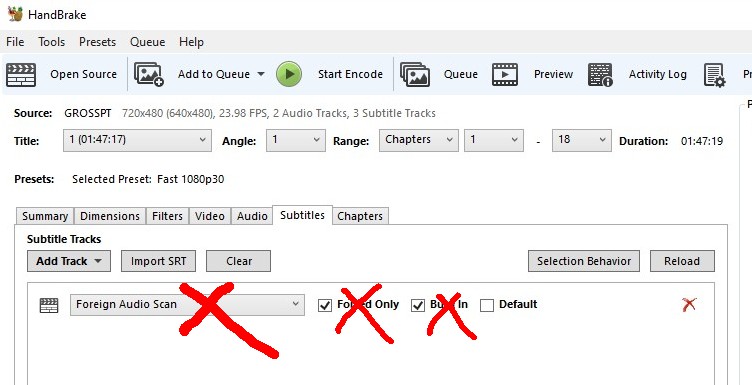
I can't believe I never knew or learned and then forgot, but IF you have a DVD and you want English subtitles you can use Closed Captions. Assuming Handbrake has been adapted to rip DVDs (that you personally own)
Simply add the subtitles as a track from the Closed Caption option.
Showing posts with label Video Editing. Show all posts
8/09/2022
3/17/2019
Note to Self: How to get subtitles from a BluRay or DVD (that you legally own!)
Next Day UPDATE:
It turns out I was using the wrong tool I wanted
MKVCleaver x64
I setup a RaspberryPi as a Plex video server and converted all my DVDs and BluRays to MP4s. I don’t have a huge library but still enough to be a bit of a task.
The problem is Foreign films, and how to get the English subtitles to show up.
In case you don’t know, to save BluRay discs to a file you need MakeMKV and HandkBrake. And to get subtitles you need MKVextract, which gives you two files one with a .sub suffix and an .idx siffix. If you have this type of subtitle result yo just need to put them in the same folder as the MP4 of the moving and then add the subtitle track in the PLEX setup of that movine.
HOWEVER, for some reason some BluRays export as .sup files and these just don’t work with the PLEX server.
After a couple of attempts I found my answer was to use Subtitle Edit which needs the movie in mkv format but can read through the movie and use OCR (optical character recognition) to confert the image based sup file to the text based srt file. The PLEX server is cool with srt files, so the only wrinkle is the quality of the pictures of the subtitles will cause it to throw that part up and ask you to type it in.
I think if the disk is a quality manufacturer you may have to respond to a dozen or so problems in the OCR process. Not to bad really. But on a cheap production you might have to retype the whole movie.
And if you have a DVD you just need to use MakeMKV rather than Hanbrake (with the VLC mod) since MKVextract only works on MKV files. After you have the subtitle files you just run the mkv file through Handbrake and you are done
MKVextract & gMKVextractGUI & MKVToolNIX
https://mkvtoolnix.download/doc/mkvextract.html
https://mkvtoolnix.download/downloads.html
https://sourceforge.net/projects/gmkvextractgui/
https://www.makemkv.com/
Registration Key for makemkv beta
https://www.makemkv.com/forum/viewtopic.php?t=18441
https://handbrake.fr/
VLC libdvdcss.dll for Handbrake
https://www.videolan.org/developers/libdvdcss.html then look for “releases” link…
https://www.videolan.org/developers/libdvdcss.html
The latest one for windows is ver 1.2.12
https://download.videolan.org/pub/libdvdcss/1.2.12/
UPDATE:
My MKVextract wasn't working (not sure if it was just the one Blue ray so I had the mkv file but used Inviska MKV Extract on it. Then used Subtitle edit
Next Day UPDATE:
It turns out I was using the wrong tool I wanted
MKVCleaver x64
Although it delivered a sup file which subtitle edit had problems with, so that finally I found a website that had an srt file that worked
It turns out I was using the wrong tool I wanted
MKVCleaver x64
I setup a RaspberryPi as a Plex video server and converted all my DVDs and BluRays to MP4s. I don’t have a huge library but still enough to be a bit of a task.
The problem is Foreign films, and how to get the English subtitles to show up.
In case you don’t know, to save BluRay discs to a file you need MakeMKV and HandkBrake. And to get subtitles you need MKVextract, which gives you two files one with a .sub suffix and an .idx siffix. If you have this type of subtitle result yo just need to put them in the same folder as the MP4 of the moving and then add the subtitle track in the PLEX setup of that movine.
HOWEVER, for some reason some BluRays export as .sup files and these just don’t work with the PLEX server.
After a couple of attempts I found my answer was to use Subtitle Edit which needs the movie in mkv format but can read through the movie and use OCR (optical character recognition) to confert the image based sup file to the text based srt file. The PLEX server is cool with srt files, so the only wrinkle is the quality of the pictures of the subtitles will cause it to throw that part up and ask you to type it in.
I think if the disk is a quality manufacturer you may have to respond to a dozen or so problems in the OCR process. Not to bad really. But on a cheap production you might have to retype the whole movie.
And if you have a DVD you just need to use MakeMKV rather than Hanbrake (with the VLC mod) since MKVextract only works on MKV files. After you have the subtitle files you just run the mkv file through Handbrake and you are done
MKVextract & gMKVextractGUI & MKVToolNIX
https://mkvtoolnix.download/doc/mkvextract.html
https://mkvtoolnix.download/downloads.html
https://sourceforge.net/projects/gmkvextractgui/
https://www.makemkv.com/
Registration Key for makemkv beta
https://www.makemkv.com/forum/viewtopic.php?t=18441
https://handbrake.fr/
VLC libdvdcss.dll for Handbrake
https://www.videolan.org/developers/libdvdcss.html then look for “releases” link…
https://www.videolan.org/developers/libdvdcss.html
The latest one for windows is ver 1.2.12
https://download.videolan.org/pub/libdvdcss/1.2.12/
UPDATE:
My MKVextract wasn't working (not sure if it was just the one Blue ray so I had the mkv file but used Inviska MKV Extract on it. Then used Subtitle edit
Next Day UPDATE:
It turns out I was using the wrong tool I wanted
MKVCleaver x64
Although it delivered a sup file which subtitle edit had problems with, so that finally I found a website that had an srt file that worked
11/25/2016
Movie Editing Tips : Part 1
For quite a few years Ive been using Magix Movie Edit MX which I think is now call ...Pro. Anyway, when I first starting my amateur video making 10 years yeas ago I was fortunately gifted a fully functioning Adobe premiere package from a software salesment. But when I switched to HD the version was too primitive to handle it.
I probably could have found a cracked newer version of Premier but ended up purchasing a Magix Movie Edit MX from Amazon. For my purposes it is as good if not better than the Adobe thing.
Anyway, I don't use it all that often so this it to remind myself how to do a few tasks. Rather than pay a ton of money to have my in-laws box of 8mm films transferred to digital I found if you have a variable speed 8mm/Super8 projector you can speed it up enough so the flicker disappears whne you simply record to a digital camera recording the projections.
The upshot is you can't get a perfect screen projection ration to recording area AND the motion is too fast.
Here is what you have to do to remedy that.
To change frame to compensate for recording from projection on wall.
effects
video object effects
Motion effects
Section (NOT Size and Position)
To compensate for having to remove 8mm projection flicker by increasing projector
film speed by 10 to 15 %
-----
effects
video object effects
Motion effects
Speed
Factor
move slider to left to slow down speed to it roughtly matches orginal
factor of .84 so...
Subscribe to:
Posts (Atom)